Hello and welcome back!
In this instance of the ‘making real displacement textures’ tutorial, we are going to start creating the textures for our models. After some time working and refining our meshes, we are now at the point where we can finally start creating some maps. This is a process that will be divided into several steps, since it’s not as straightforward as what we’ve done before: first, we’ll create texture maps for all the meshes that we have, and then we’ll create them as regular textures that we can apply in any other model. Let’s get to it!
So what are we actually going to create from now on? As you know, the aim of what we’ve been doing so far is to create some textures that we can use instead of actual geometry to use as displacement maps. Any texture that you can use will have the overall shape of something like what you have under these lines – a picture that you are probably used to work with. In order to create something like that, we need to project all the information of our meshes into a plane – that is, transfer the displacement, bump, ambient occlusion, diffuse, etc information into said plane.
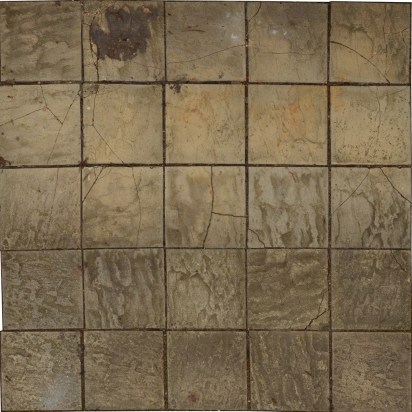
What we’ve said before is aimed towards creating textures that you can use in any mesh that you want. Although that’s our main focus, we are also going to create another set of maps for our low resolution meshes. By doing that, we’ll be able to transfer all of the fine detail from the high poly models into the low poly versions, which will be something very useful when we want to use our models in a game. The process will be very similar, so don’t worry about doing extra work. Having said that, let’s start doing it!
1/ GENERATING UV MAPS FOR THE MESHES
Before we can create any textures, we have to UV our models. In the previous post, we created several examples at different resolutions of our original scene. We have the raw model, a high poly one, another low poly version… An I’d like to create another one in a little bit, which will just be a plane, but we’ll get there.
To UV our models, we can rely on zBrush’s ability to do that. There’s always the option to manually do it, but since we are working on fairly simple meshes there’s no real need for that. To create a planar UV map, we can head over to the UV tab in zBrush and hit the UVP button. Be careful, only do this on the higher polygonal model! For the other ones, we want to transfer the UV that we have instead of creating more. That way we are ensuring that the information that we transfer is placed in the right place.
So how do we transfer the UVs from one mesh to another? In order to do this, we can export the meshes in OBJ format from zBrush and open them in Maya. Once in there, and under the modelling work ribbon, we can head over to the Mesh tab and select the ‘transfer attributes’ option. Open the dialogue box and choose only to transfer the UV sets, and do this step for as many meshes that you have.
At this point, we can go even further and create a plane in Maya. Be careful to match the plane to the position of the imported meshes, and make it as close to the original shape as possible. The next image will give you an idea of what we are aiming for.
Once we’ve covered all of those steps, be sure to export the models in the .obj format and get ready for the next move!
2/ GENERATING THE DIFFUSE TEXTURE
At this point, we can create all of the textures that we need. In spite of this, let’s start with the diffuse one, since it kind of makes more sense from the pipeline point of view.
To do so, we’ll head over to Agisoft once again. All of our images have already been projected over there, so it’ll be very easy to re project them into our new and polished models. The only thing we need to do is open the file from which we exported the raw mesh and import the new models, one at a time. Agisoft doesn’t allow to import multiple meshes, so repeat the steps in the next paragraph for each of the scenes that you have.
Once you import a mesh into Agisoft, it will replace the previous one. If you opened the Photoscan file, as soon as you get the new model into the scene it should position itself in the correct position. Be aware that, for this to be true, any polishing or retouching that happened inside zBrush or Maya should have not affected the position of the model or its scale. In case you see your models out of place, be aware that’s probably the reason why.
If everything’s set, now it’s the time to create the diffuse texture. Head over to the ‘workflow’ tab and select ‘build texture’, just as we’ve done in a previous post. This time, however, we have to select from the drop down menu the ‘keep uv’ option. That way, Agisoft will create the texture based on the UVs we have previously created. All that’s left to do is select the size of the map that you want and go through this process for as many models you have.
Before we move on, a good piece of advice is not to use all of the cameras in the scene to project the texture. Even though using them all won’t translate into an enormous processing time, the overall final quality can be affected. As a general rule of thumb, it’s better to stick to the pictures that cover most of the model, and just select a few so there won’t be any stretching or matching incompatibilities. Try a few configurations and see what works best for you!
3/ GENERATING THE OTHER TEXTURES
From now on, and considering what we’ve already created, it’s time to generate the rest of the textures: the displacement map, the bump map, the AO, the highlight glossiness, the depth… and a couple of others.
Nevertheless, and to keep this post at a reasonable leght, we’ll do a separate entry on this process. When we get there, we’ll be using xNormal, a program that generates these types of maps based on the models we already have, and Photoshop. I’m sure you are very familiar with the last one! I’ll try to cover that process in less than a week, so until then, see you soon!
Cheers!
 Brais Brenlla