Hello and welcome back!
Starting with this series of short posts, I’d like to talk – write? – today about some things to consider when exporting models between 3DS Max and Unreal. Even though this can be an easy process, it can also get complicated depending on the circumstances. For example, you might be used to one particular pipeline for creating and exporting your models that works when you want your creations displayed in UE4- but sometimes you might find yourself using other models that don’t work as well! Let’s take a quick look into many different settings that can solve a number of problems. Today, we’ll talk about quads, triangles and smoothing groups.
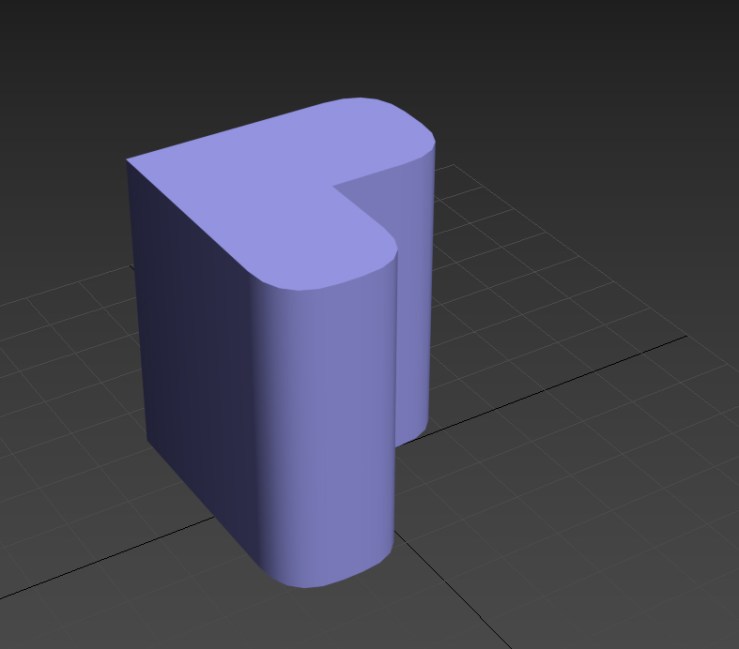
Let’s start by taking a look at the above model in Max: some of its edges are rounded, and we can see them with an almost perfect curvature. This happens even though the main geometry underneath the model is made of planar faces, and we can thank the smoothing groups that are automatically applied to the object when it is created for the overall appearance. Let’s take a look at the wireframe next.


As you can see, the images depict an almost perfect rounded edge when it really is composed of many planar faces put together. At this point you might be wondering: Ok, so the 3D app automatically smooths objects for us, great. What about it? Well, in the large number of 3D apps that we are sure to be using in our pipeline, this important attribute can get lost along the way of importing, exporting and triangulating the model. Let’s talk about some common cases by taking a look at the next set of images.


In the pictures above, you can see the same model we previously used but now without the smooth modifier. This can happen for a number of reasons, such as if we try to export the model to Unreal without the appropriate fbx settings, or if we export the model in a format that doesn’t support this modifier – such as “.obj”. I have mentioned both formats, since I use them a lot when dealing with different models. What are their differences? Here’s a quick rundown:
- Fbx’s let’s you export a lot of attributes, such as the smoothing modifier, turbosmooth properties, animations, materials… but of course, it does depend on what the application that is going to import it can handle. For example, if you export a mesh with an applied material to it it might not work straight out of the box in Unreal.
- OBJ’s have less options, and I often use them when exporting to applications that don’t support fbx’s for doing temporary work in them. Such is the case of ZBrush, where I export and import obj’s since what I need from it are the meshes and UVs.
To make sure that the smoothing groups are exported into Unreal, we have to make sure that the right settings are chosen in the export window. Here’s a quick look at some of the settings:


There are many options in the above dialog boxes, but just make sure to include the tick in the “Smoothing groups” box in your pipeline.
In spite of this, we should also consider another different scenario we might encounter in 3D apps. Imagine that, after modelling something complex in Max, you decide to take it into ZBrush to quickly unwrap it. As I said before, I like exporting the model back and forth between applications using the .OBJ format, which means that when moving from Max to ZBrush my mesh is going to get triangulated. The triangulation process itself is ok, since when dealing with Unreal everything would need to be triangulated, but the smooth attributes can easily get lost. Let’s have a look at how to solve this issue.


By using the smooth modifier in 3DS Max, we can solve this little issue and get back to our intended look for the mesh. It’s a nice addition that can correct the problems that often arise when dealing with multiple computer programs, so make sure you don’t miss it when going into Unreal!
Next time we’ll continue with more real life scenarios from the 3DS Max to Unreal pipeline, but feel free to ask for anything in particular if you feel like it! I haven’t decided what the next topic will be, but maybe I’ll move a little bit closer to Unreal. Perhaps one week in Max, another in Unreal? We’ll see… in about a week! Take care and see you soon,
Until the next blog post!
 Brais Brenlla